Traducios en espanol a qui
>>>>>>>>>>>>>>>>>>>>
So in this tutorial I will show you how to create a really cool and super easy typographic portrait in Photoshop. We will use the Displace filter and some Blend Modes to achieve the effect. The whole process is quite simple but it might take you some time to add the texts and elements, but once you do that the rest is very straight forward.
Step 1
Open Photoshop and create a new document. I used 2560x1440 pixels for the size. Then import a photo of yours, I'm using a portrait taken by a John Arlington, a great photographer friend of mine. The photo I have is with white background, so extract the background.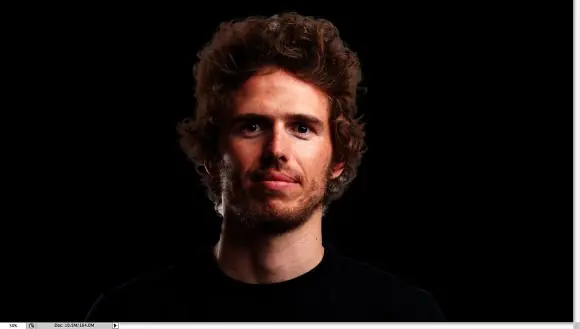
Step 2
Duplicate the layer and go to Image>Adjustment>Desaturate. You will have a black and white photo. Add a white background. After that save the file, it has to be PSD otherwise it won't work with the Displace filter.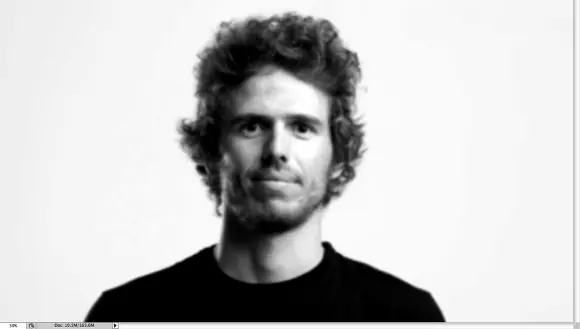
Step 3
With the Horizontal Type Tool (T) create text boxes and start adding texts. The idea is to play with the texts, they don't have to be readable, or at least with normal legibility, so play with the line-heights, reduce that so the lines overlay one another.
Also make some keywords much bigger and bold, like in my case I highlight some words like Photoshop Tutorials, Illustrator, Inspiration... Also, play with italic, regular texts as well as alignments and text sizes. Tip: I used Garamond for the font, I think serif fonts look much better for this effect.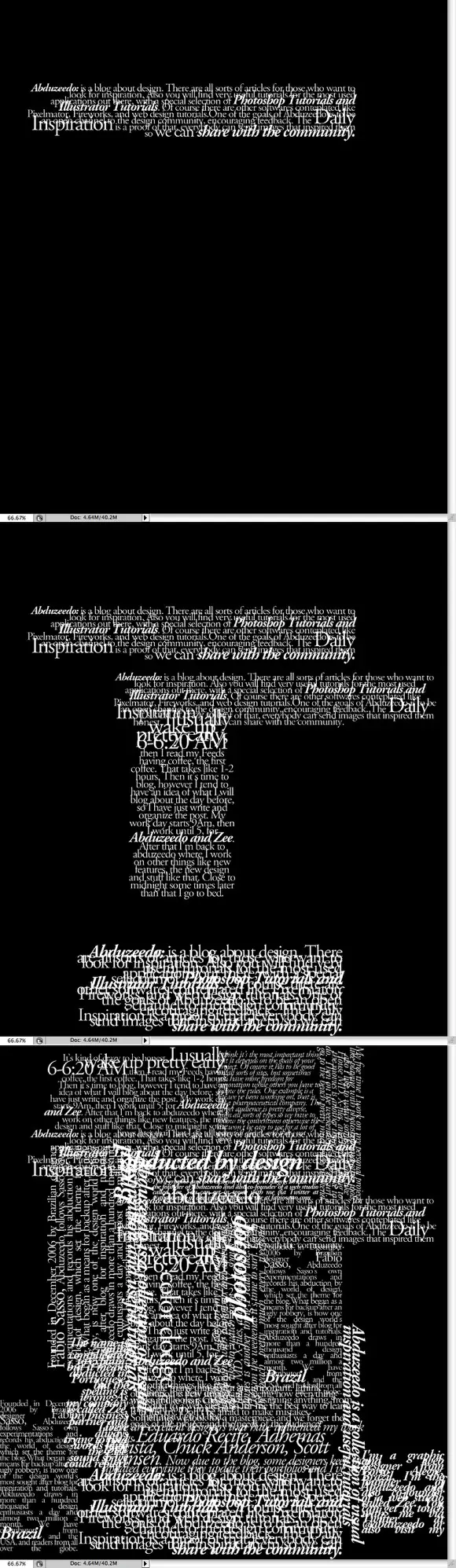
Step 4
For each layer, go to Layer>Layer Style>Drop Shadow. Use Multiply for the Blend Mode, black for the color, 90º for the Angle and 5 pixels for Distance, Spread and Size.
Also, group all the layers and the duplicate the group. Go to Layer>Merge Group and then go to Filter>Blur>Gaussian Blur. Use 10 pixels for the Radius. This blurry layer will have to stay behind the regular one. The idea is to add some depth to your text, that's why the shadow.
You can duplicate the orginal text again and move it a little bit to the top and left as well to add even more depth.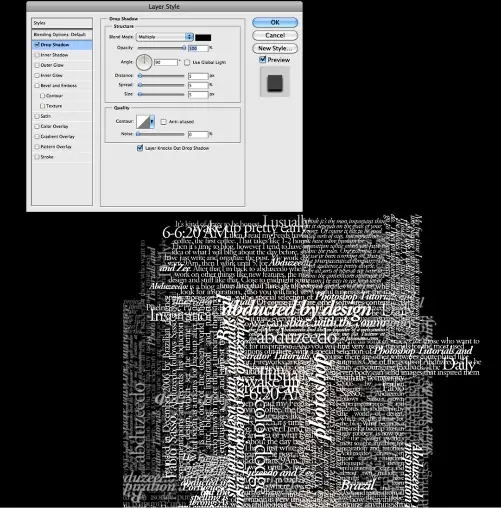
Step 5
Select all the text layers and merge them into one layer only, then go to Filter>Distort>Displace. A dialog box will appear asking you to choose a file. Select the PSD file we created on the Step 2. After that for the Displace settings use 15 for the Horizontal and Vertical Scale; use Tile for Displacement Map and Repeat Edge Pixels for the Undefined Areas.
The displacement map will distort the layer based on the greyscale photo we used, the dark tones go down while the lights go up.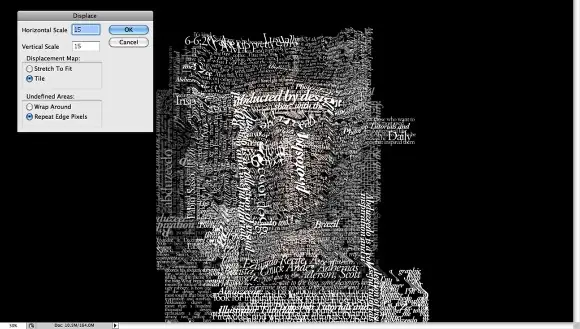
Step 6
Put the photo layer on top of the white text layer, then change the Blend Mode of the photo layer to Light Burn.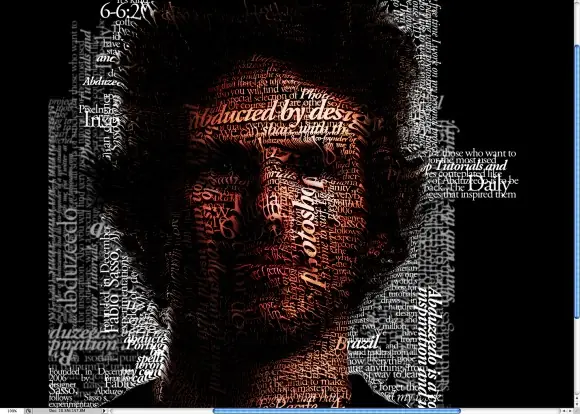
Step 7
The photo has too many details, so go to Filter>Noise>Dust & Scratches. Use 7 pixels for the Radius and 0 levels for the Threshold.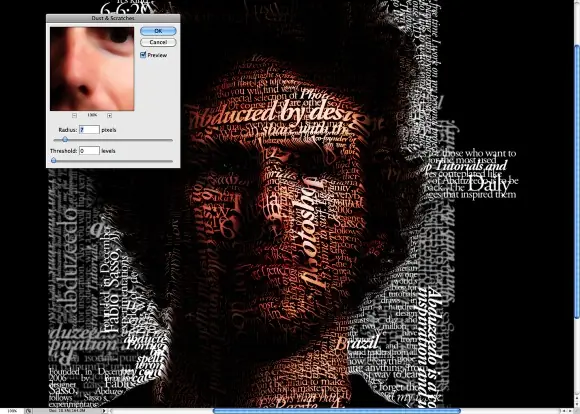
Step 8
Mask the text layer so you will have just the texts over the photo.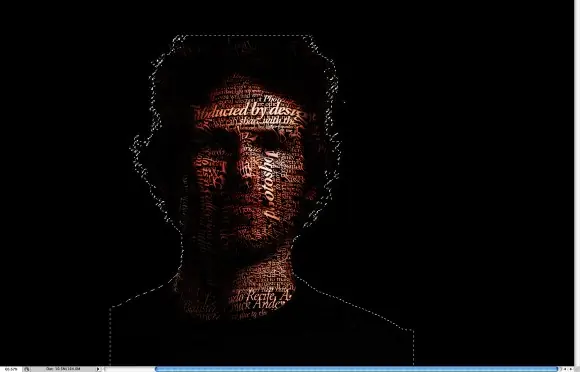
Conclusion
You can reduce a little bit the saturation and as I mentioned before, you can add more text layers and even try different symbols and shapes.
There are many ways to create this effect, this perhaps is the easiest one, but you have to be very careful to make everything very subtle, otherwise the effect won't look as cool as we expect.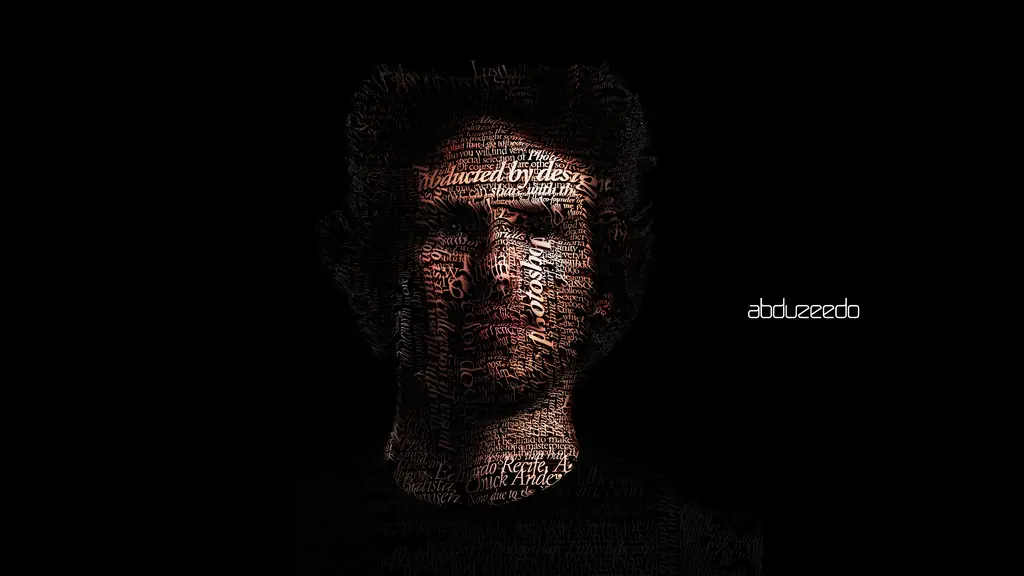
________________________________________________________________________________________________
In this tutorial, I will show you how to create a typographic portrait using only Pixelmator. But what does that mean? A typographic portrait is a portrait composed of text. The technique is pretty simple. We will also play with Blending and basic filters.
Step 1
Open Pixelmator and create a new document (The size I used was 1440×900 pixels). Then fill the background layer with black.
Step 2
Import the photo you want to use (The one I selected was courtesy of Shutterstock. You can get it at .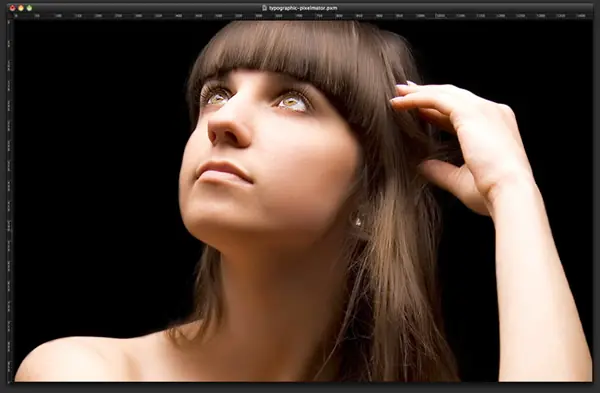
Step 3
Duplicate the layer image and go to Image>Desaturate. Then go to Filter>Blur>Gaussian Blur. Use 15 for the radius. After that, go to Image>Invert. We will use this image later on, so you need to export it. Go to File>Export and export a JPG version of it.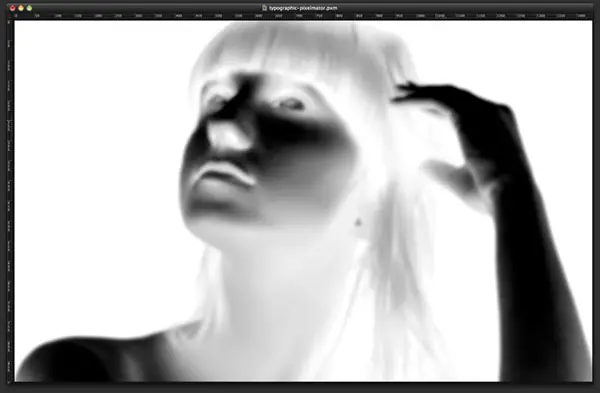
Step 4
With the Type Tool (T), add text until the whole screen is filled (For the font, I used Georgia Italic, size 18). After that, duplicate the layer and change the text color to black. Go to Filter>Blur>Gaussian Blur and use 4 pixels for the radius. Move this layer down 2 pixels; that will create a shadow. You will not see it because the background is currently black, but it will will be visible as we start adding more layers. The shadow is important because it will give a nice depth to the composition.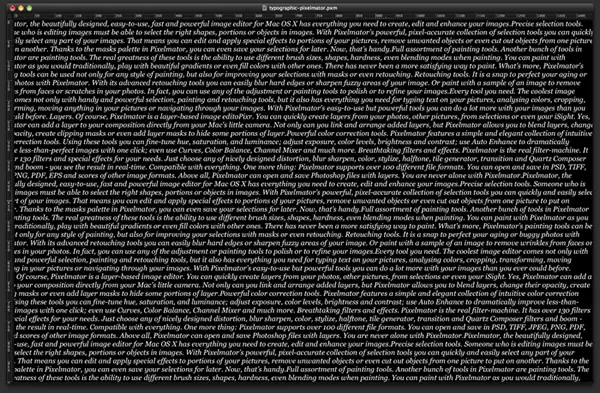
Step 5
Add more text, changing font sizes. Always create shadows, as we did in the previous step.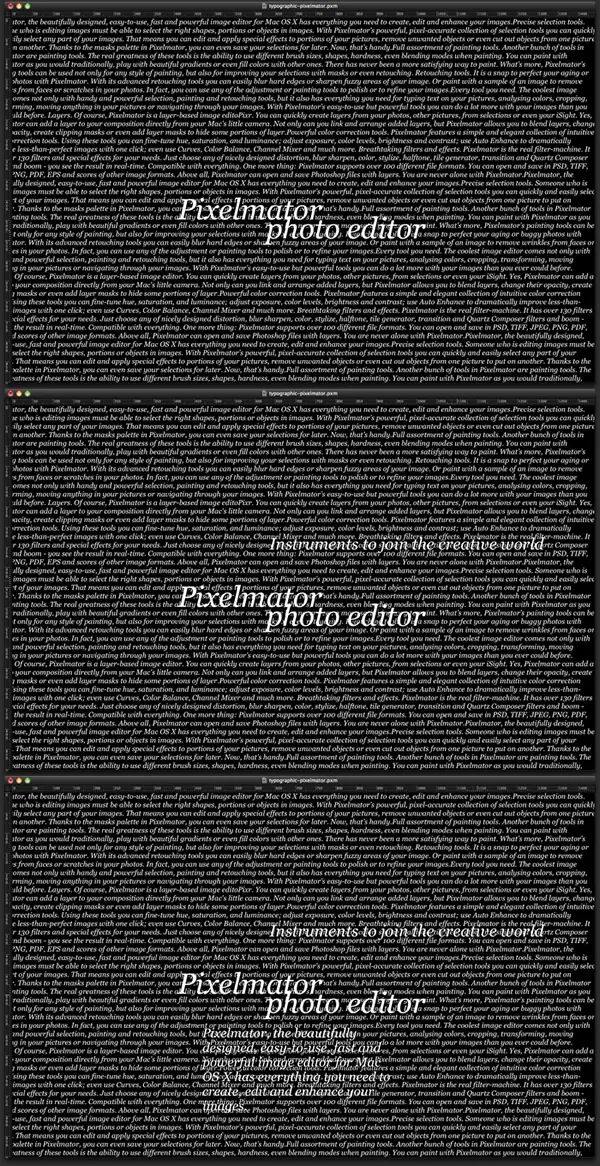
Step 6
Now below all the other text layers, add more text. Fill the screen with text, but using a smaller font, such as size 13. After that, go to Filter>Blur>Gaussian Blur and use 3 pixels for the radius.
Step 7
Put the photo layer on top of the other layers and change Blending to Linear Burn.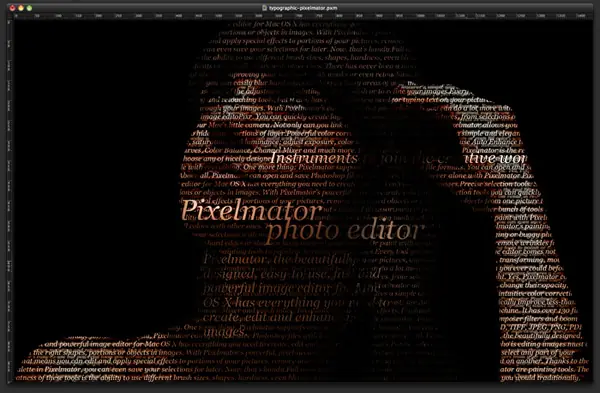
Step 8
Select all text layers and go to Layer>Merge Layers. After that, go to Filter>Distortion>Displacement. The filter box will open. Here, you will need to use the image we exported in step 2. Just drag it from where you saved it to the filter box. Increase the scale to 120.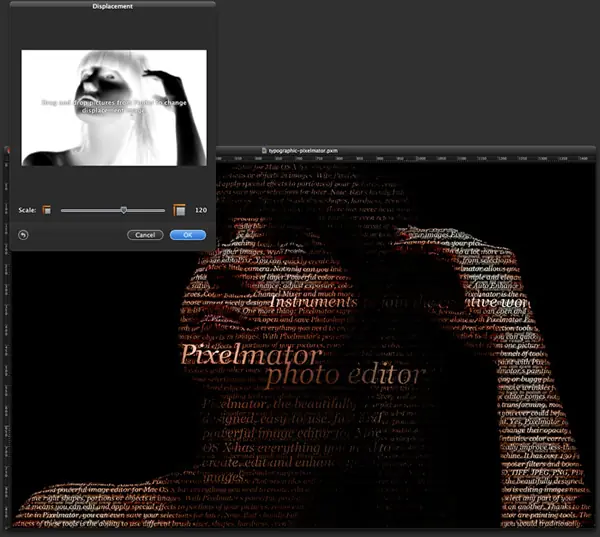
Step 9
The Displace filter will make the text look weird, especially the edges, so go to Filter>Blur>Gaussian Blur. Use 6 for the radius.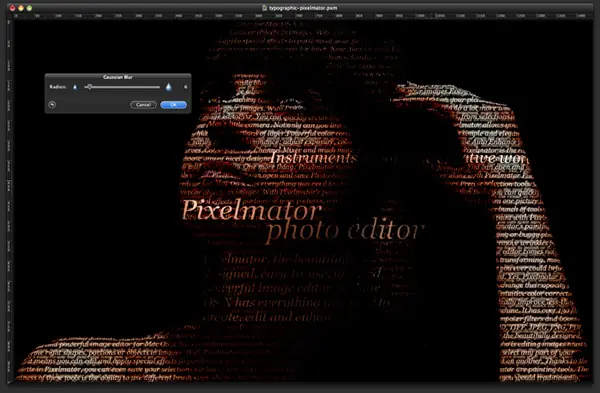
Step 10
Duplicate the photo layer and change Blending to Multiply and the opacity to 50%. You can also group all layers and duplicate them. After that, merge them into one layer and go to Filter>Blur>Gaussian Blur. Use 15 pixels for the radius and then change Blending to Screen and the opacity to 60%. That will add a little glow to your typographic image.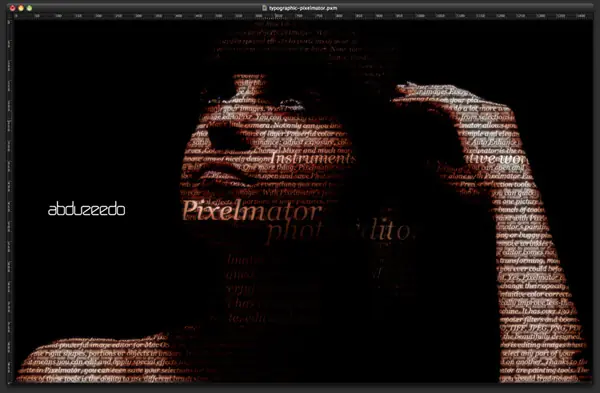
Conclusion

>>>>>>>>>>>>>>>>>>>>
So in this tutorial I will show you how to create a really cool and super easy typographic portrait in Photoshop. We will use the Displace filter and some Blend Modes to achieve the effect. The whole process is quite simple but it might take you some time to add the texts and elements, but once you do that the rest is very straight forward.
Step 1
Open Photoshop and create a new document. I used 2560x1440 pixels for the size. Then import a photo of yours, I'm using a portrait taken by a John Arlington, a great photographer friend of mine. The photo I have is with white background, so extract the background.
Step 2
Duplicate the layer and go to Image>Adjustment>Desaturate. You will have a black and white photo. Add a white background. After that save the file, it has to be PSD otherwise it won't work with the Displace filter.
Step 3
With the Horizontal Type Tool (T) create text boxes and start adding texts. The idea is to play with the texts, they don't have to be readable, or at least with normal legibility, so play with the line-heights, reduce that so the lines overlay one another.
Also make some keywords much bigger and bold, like in my case I highlight some words like Photoshop Tutorials, Illustrator, Inspiration... Also, play with italic, regular texts as well as alignments and text sizes. Tip: I used Garamond for the font, I think serif fonts look much better for this effect.
Step 4
For each layer, go to Layer>Layer Style>Drop Shadow. Use Multiply for the Blend Mode, black for the color, 90º for the Angle and 5 pixels for Distance, Spread and Size.
Also, group all the layers and the duplicate the group. Go to Layer>Merge Group and then go to Filter>Blur>Gaussian Blur. Use 10 pixels for the Radius. This blurry layer will have to stay behind the regular one. The idea is to add some depth to your text, that's why the shadow.
You can duplicate the orginal text again and move it a little bit to the top and left as well to add even more depth.
Step 5
Select all the text layers and merge them into one layer only, then go to Filter>Distort>Displace. A dialog box will appear asking you to choose a file. Select the PSD file we created on the Step 2. After that for the Displace settings use 15 for the Horizontal and Vertical Scale; use Tile for Displacement Map and Repeat Edge Pixels for the Undefined Areas.
The displacement map will distort the layer based on the greyscale photo we used, the dark tones go down while the lights go up.
Step 6
Put the photo layer on top of the white text layer, then change the Blend Mode of the photo layer to Light Burn.
Step 7
The photo has too many details, so go to Filter>Noise>Dust & Scratches. Use 7 pixels for the Radius and 0 levels for the Threshold.
Step 8
Mask the text layer so you will have just the texts over the photo.
Conclusion
You can reduce a little bit the saturation and as I mentioned before, you can add more text layers and even try different symbols and shapes.
There are many ways to create this effect, this perhaps is the easiest one, but you have to be very careful to make everything very subtle, otherwise the effect won't look as cool as we expect.
________________________________________________________________________________________________
In this tutorial, I will show you how to create a typographic portrait using only Pixelmator. But what does that mean? A typographic portrait is a portrait composed of text. The technique is pretty simple. We will also play with Blending and basic filters.
Step 1
Open Pixelmator and create a new document (The size I used was 1440×900 pixels). Then fill the background layer with black.
Step 2
Import the photo you want to use (The one I selected was courtesy of Shutterstock. You can get it at .
Step 3
Duplicate the layer image and go to Image>Desaturate. Then go to Filter>Blur>Gaussian Blur. Use 15 for the radius. After that, go to Image>Invert. We will use this image later on, so you need to export it. Go to File>Export and export a JPG version of it.
Step 4
With the Type Tool (T), add text until the whole screen is filled (For the font, I used Georgia Italic, size 18). After that, duplicate the layer and change the text color to black. Go to Filter>Blur>Gaussian Blur and use 4 pixels for the radius. Move this layer down 2 pixels; that will create a shadow. You will not see it because the background is currently black, but it will will be visible as we start adding more layers. The shadow is important because it will give a nice depth to the composition.
Step 5
Add more text, changing font sizes. Always create shadows, as we did in the previous step.
Step 6
Now below all the other text layers, add more text. Fill the screen with text, but using a smaller font, such as size 13. After that, go to Filter>Blur>Gaussian Blur and use 3 pixels for the radius.
Step 7
Put the photo layer on top of the other layers and change Blending to Linear Burn.
Step 8
Select all text layers and go to Layer>Merge Layers. After that, go to Filter>Distortion>Displacement. The filter box will open. Here, you will need to use the image we exported in step 2. Just drag it from where you saved it to the filter box. Increase the scale to 120.
Step 9
The Displace filter will make the text look weird, especially the edges, so go to Filter>Blur>Gaussian Blur. Use 6 for the radius.
Step 10
Duplicate the photo layer and change Blending to Multiply and the opacity to 50%. You can also group all layers and duplicate them. After that, merge them into one layer and go to Filter>Blur>Gaussian Blur. Use 15 pixels for the radius and then change Blending to Screen and the opacity to 60%. That will add a little glow to your typographic image.
Conclusion