ChuckKru
Usuario (Costa Rica)

Este poste ha sido desarrollado con el único fin de boludear un rato, o como dirían en mi pueblo natal, hacer feo o palanganear. Queridos animalitos de la creación, me reporto desde una región perdida en el tiempo y el espacio, quizás de un lugar tan podrido que ni en tus peores pesadillas podrías imaginar. Taringa es el portal por el cual puedo expresar mis infinitos conocimientos sobre la estupidez humana, es por eso, que hoy les vengo a traer una cantidad moderada de datos inútiles que te harán sentirte enojado al haber desperdiciado tu tiempo leyendolos. Antes de continuar, vamos a presentar un contrato legal, si decides continuar leyendo aceptas ser un pendejo y dejar al menos 2 puntos. Y si decides dejar de leer el post, admites que quieres ser sodomizados por Archivaldo Perez y además nos de la posesión legal sobre el ojete de tu mami. (Él es Archivaldo Perez) Sin mas preambulos continuamos con el post milenario: Primer dato inútil: El planeta del cual provengo utiliza el calendario sexual icónico para medir el proceso de reproducción sexual de los dinosaurios. Segundo dato inútil: La religión con mas profesantes en la galaxia xd56 es la victoriana protestante. Tercer dato inútil: El deporte con más seguidores en mi planeta natal es el futchiball, es igual al tenis, pero en vez de raquetas utilizan calcetines llenos de harina, y la pelota utilizada es hecha a base de cuero de riñon de humano. Cuarto dato inútil: En mi planeta descubrimos Taringa buscando pornografía. Quinto dato inútil: La película que mas premios a recibido por su calidad artística en mi planeta natal se llama: Shakira contrataca. Sexto dato inútil: La profesión más respetada y remunerada de mi planeta es la prostitución trisexual.
La primera fotografía en ser subida a la red está cerca de cumplir 20 años. Se trata de un retrato de un grupo musical formado por funcionarias del CERN, el centro de investigación nuclear europeo, en donde se creó este servicio de Internet que revolucionó la vida moderna. Dentro de las actividades del CERN había un festival llamado "Hardronic Music Festival", el cual se realizada anualmente en un bar local. En la edición de 1992, un grupo de parodia cómica formado por cuatro mujeres, llamado "Les Horribles Cernettes", participó e hizo historia. El grupo, conformado por Colette Marx-Nielsen, Angela Higney, Candian Lynn Veronneau y Michele de Gennaro, hizo su presentación el 18 de julio de 1992, vestidas con atuendos retro. Para capturar el momento antes de salir al escenario, el novio de una de ellas (Silvano de Gennaro) les sacó una foto para una carátula de CD. De Gennaro, ingeniero informático, trabajaba con Tim Berners-Lee, creador de la World Wide Web. Cuando Lee le solicitó una imagen para ser usada como conejillo de indias en la Web, De Gennero sugirió usar la foto de las Cernettes, ya que estaba en un formato .gif, que por su compresión podría ser subido rápidamente. La imagen, alterada mediante la incorporación de gráficas y el reemplazo del fondo por un único color, fue subida a la Web el 20 de julio de 1992 por Jean Fracois Groff, un programador del proyecto. El grupo siguió presentándose durante los últimos años e incluso presentó nuevas canciones en Hardronic Festival de 2007. Michele y Silvano se casaron y él ahora cerca de jubilarse de su puesto en el CERN. Según The Telegraph, las Cernettes se presentarán por última vez esta semana aunque no está claro si harán mención de la foto, cuya copia original se perdió cuando el computador que la tenía dejó de funcionar en 1998.

When it comes to installing popular Linux flavour Ubuntu, there are so many useful snippets of information on blogs and guides all over the internet. If you Google “How to install Ubuntu”, you’ll see what I mean. For an Ubuntu beginner or curious Windows intermediate user however, there’s no single, simple source of information when it comes to trying out your first Ubuntu installation. One thing I have noticed is that there’s a lot of technical jargon and sometimes unnecessary terminal commands in lengthy forum posts, but no simple “how to” guides, which I think might put some people off! A shame, when you think about how easy Ubuntu is to install, use and tweak to look really cool! This post will talk you through your first Ubuntu installation, hopefully teaching you everything you need to know to give Ubuntu a try without breaking or removing your existing Windows installation. The end result will be a “vanilla” Ubuntu Installation running simultaneously with your Windows installation using either the GRUB bootloader, or WUBI, depending on how far you’d like to go on your first Ubuntu experience. I hope my guide makes installing Ubuntu an enjoyable, simple experience. By the end of the guide you should have a dual boot Windows / Ubuntu machine that happily plays music, video, and acts as a perfectly usable home office computer with Openoffice 3.0. For the really adventurous you could even run Windows XP inside Virtualbox, which is linked to later on in the guide. The Ubuntu OS is unique and seriously cool, so, enjoy the trip. If you’re planning on installing the latest version of Ubuntu (Jaunty Jackalope 9.04) you can install Ubuntu straight from the CD inside Windows or from a USB stick and the install process can takes care of formatting your hard drive partition for you. You might not yet have a spare partition to do this, so I’ve covered shrinking your existing Windows partition to make space for Ubuntu here. How to install Ubuntu from CD 1) Download the Ubuntu ISO from http://www.ubuntu.com/getubuntu/download and save to your desktop 2) Burn the ISO image to a blank CD using Roxio CD creator or similar: 3) Run the CD from “My Computer” – the CD should ask permission to run at which point you’ll see this option screen: Install Ubuntu with Wubi 4) If you’d like to install Ubuntu using Wubi, select “install inside Windows” and follow the instructions. Installing with WUBI is ideal for a first taste of Ubuntu as you can remove from add/remove programs in Windows later on. This install process is really easy but you don’t get the same performance as if Ubuntu had a separate partition running on its EXT3 file system. The following screens are all based on the Wubi installer process, so you can follow the rest of the instructions below. If you’d like to install Ubuntu separately to Windows, then skip to point 7) below. Here’s what you see next: Wubi installer If you’ve got the space on your hard drive, go for 30gb or more for the installation size. 5) Now configure your installation using the simple settings options. You can specify the location of the Ubuntu installation on your Windows partition, the size of the Ubuntu installation, the Ubuntu flavour (Ubuntu, Kubuntu, Xubuntu, etc), your preferred language, and a username and password for the Ubuntu system. When you click install, you’ll see this screen: As soon as the files have finished downloading, you’ll see this: Time to reboot Wubi installer 6) That’s it! Click reboot now, and select “Ubuntu” on the startup screen. You now have a fully functional dual boot Windows / Ubuntu machine. Install Ubuntu on a single (EXT3) partition (separately to Windows) 7) Click “Demo and full installation” and your computer will restart and boot into Ubuntu. It’s worth saying at this point that you’re about to install Ubuntu on an entirely separate drive partition. That means, you need to make sure you have enough space on your computers hard drive to accomodate the new setup. Keir Thomas found that a partition less than 4gb would lead Ubuntu to crash during install in his first look at Ubuntu 9.04 over at Lifehacker. Here’s a guide on how to resize or shrink your Windows Vista partition. Follow those instructions before you reboot into the live version of Ubuntu and you’ll have a really easy time during the following steps. Maybe you’d like to install from a USB? Let’s have a quick look at the process of installing from a USB before we continue: Here’s how to install Ubuntu on a USB drive from Windows Vista: 8) Format your USB stick with a FAT32 partition from Windows. You can get to the format dialogue by opening My Computer and right mouse clicking the removable drive icon. Click “Format” and follow the settings in the image below. You need a minimum 2gb USB stick. 9) Download UnetBootin. UNetbootin allows for the installation of various Linux/Ubuntu distributions to a partition or USB drive, so it’s no different from a standard install, only it doesn’t need a CD. The coolest thing about the application is that it’s a “portable” app. You don’t need to install it into Windows meaning UNetbootin will run on your Windows PC without “admin” privileges. The new version of Ubuntu isn’t in the Distribution list supplied with UNetbootin yet, so use the downloaded Ubuntu ISO from earlier on. Add the ISO using the “Diskimage”, make sure your USB drive is selected below and click OK. The ISO transfers to the USB pretty quickly, so soon after you click OK you’ll see this screen: 10) That’s it – when the installation process is complete, restart your computer and make sure it’s set up to boot from USB. On my HP Laptop, pressing F9 on the boot screen shows a boot order menu. Selecting “USB Hard Drive” follows a black screen, an Ubuntu logo, and finally, your new Ubuntu desktop appears. Completing your Ubuntu installation, step by step Installing Ubuntu is so easy that it requires very little effort past this point. If you’ve managed to repartition your hard drive and restart your computer you’ll sail through the next few steps: 11) Click “install” on the live desktop (top left) 12) Choose your language in the welcome screen 13) Choose your location 14) Choose your keyboard layout 15) Set up your disk partition. This is probably the most “technical” part of the installation. When I shrunk my Windows Vista drive volume, I never formatted the new partition, which means the “use the largest continuous free space” option works nicely: 16) Choose your username and password: 17) Migrate your Windows documents and settings 18) You’re now ready to install your new Ubuntu installation 19) When the installation has finished, restart your computer (you’ll be instructed to remove your cd rom or USB drive). You’re now ready to begin using Ubuntu! Useful tips and resources for Ubuntu Over the months, I’ve compiled a number of useful tips and hints to get you started in using your new operating system. Here’s a few that people have found most useful: When you first login you’ll notice the system beep is a little annoying. Here’s how to turn it off. Having problems setting up your wireless network? Use this guide to set it up. Want to run Office 2007 or Windows XP from inside Ubuntu? Use this guide to install Virtualbox. Want to have that amazing 3d cube desktop? You’ll need to install Compiz. Want to make your installation look absolutely amazing? Check this post for a beautifully minimalist Ubuntu desktop powered by Conky. Finally, why not try installing boxee inside Ubuntu to watch a lot of great, free TV! Ubuntu is a brilliantly simple, easy to use, free and powerful operating system. I hope this guide helps you get on your way. Any feedback? Leave comments below. Buenas Taringueros, este Post esta en ingles, con el fin de internacionalizar mas esta web y dar mayor alcanze. Gracias Por su visita. Hi Taringueros, this post is in English, in order to internationalize over this site and give greater reach. Thanks for your visit.
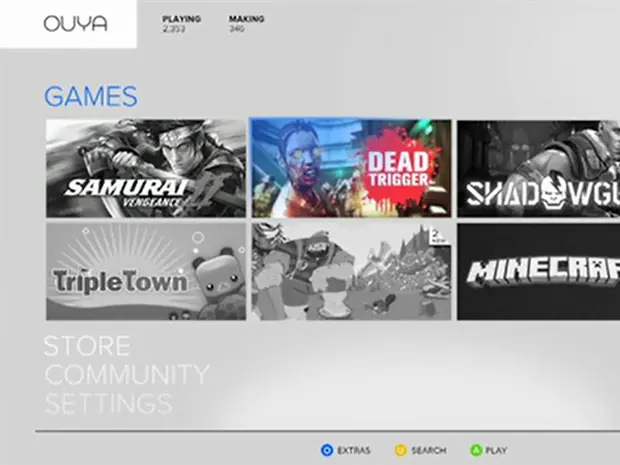
En principio Ouya no pretende competir con consolas como PlayStation 3, Xbox 360 o Wii y Wii U. Sin embargo, a todas luces es una propuesta novedosa, barata y sobre todo abierta y masiva. Se trata de una máquina de bajo costo y creada, según señalan sus desarrolladores, para ser hackeada, abierta para que cualquier usuario pueda crear juegos y ponerlos a disposición de la gente.El proyecto se anunció hace unos días y en pocas horas en Kickstarter (un sitio web de financiación en masa para proyectos creativos) ha conseguido más de dos millones y medio de dólares. La máquina está basada en Nvidia Tegra 3 y Android 4.0. Lo más importante es que permitirá a cualquier usuario del mundo programar sus propios juegos. “La consola Ouya está basada en el Nvidia Tegra 3 de cuatro núcleos, posee 1 GB de RAM, 8 GB de almacenamiento interno, un puerto USB 2.0, Bluetooth, WiFi n, conector HDMI con soporte 1080p, y un pad —mando— inalámbrico con los típicos controles que podemos encontrar en cualquier otra consola, pero que ha recibido un nivel de atención muy alto”, señala ABC . La consola saldrá a un precio de 99 dólares y los juegos serán “free to play”. “Se trata de una nueva modalidad de juego con la que ya están experimentando las distribuidoras y que consiste en que los jugadores no necesitan comprar el juego, pero si quieren avanzar más rápido o acceder a ciertas características deben hacer micropagos”, añade el diario “La Verdad” .
Gracias a : En estos momentos de paranoia, estrés, miedo,insertidumbre, etc.. Le agradezco a Dios,Chuck Norris, Santa Claus, Bart, Goku,etc... que existe Taringa, nos hemos podido informar acerca de ley que a mi parecer, es un robo a la libertad de expresión, (no quiero adentrar mucho en el tema pues este no se refiere mucho al titulo del post.), nos informamos del cierre a , y ademas nos enteramos de las "Noticas" del Chicharito, Messi, C.Ronaldo, todas estas siempre tratando de minimizar a estos atletas,que se los puedo asegurar,que anque los critiquemos,ninguno de nosotros es tan buen jugador como ellos, ademas Gracias a que existe taringa pude formatear, piratear, bajar juegos,aprender de informatica, y todo de forma gratis, aprendi terminos como :"BARDO", "TROLL", "TARINDGUEROS", esta grandiosa web se ha convertido en mi biblioteca,biblia,semilla del hermitaño, esfera del dragon.... e encontrado un pasatiempo productivo, puesto que taringa nos culturiza, GRACIAS por existir Taringa , siempre dejandonos encontar juegos,peliculas,etc, nos diviertes dejandonos hacer bardo en los comentarios.A quien no le paso que Gracias a Taringa encontro sus series favoritas de infancia:Gracias a Taringa que nos permitio encontar el mejor antivirus y nos surtio los programas para formatear. Gracias A TARINGA por enseñarnos y pase lo que pase luchare porque siempre existas mi TARINGA.Muchas Gracias Taringueros por leer el post, si queres bardear? Hacelo, Queres dejar puntos? Hacelo, Queres ca*** en mi? Hacelo? hace lo que queras, de todos modos no soy la S.O.P.A. Asi que disfruta el post y deci lo que pensas.
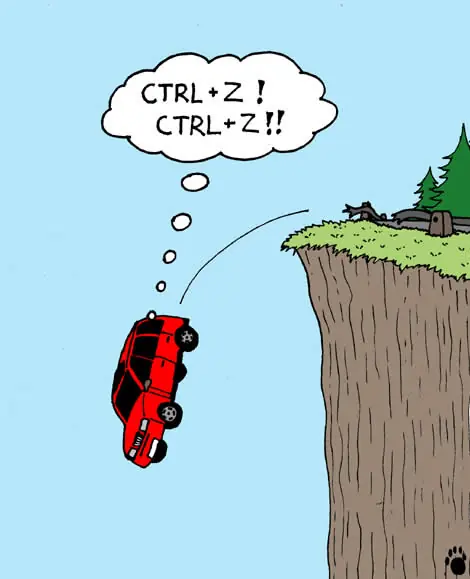
Este post es dedicado a esos personajes que daba colera ver en una serie, que arruinaban todo con sus apariciones, en algunos casos aun siguen arruinando las series : Pero antes de ver los mismos un chiste: Numero 1:Dee-Dee: A mi parecer sumamante molesta, inopurtuna y si no fuera por ella su hermano llegaria muy lejos.Numero 2 :Daniel el travieso: Era el protagonista de su serie, pero era una molestoia verlo su majaderia es insoportable un insoportable total.Numero 3 : Vicky: La molesta niñera de Timmy Turner, simplemente me rompia los....Numero 4: En esta serie son las protagonistas, pero aun asi hacen que el espectador sienta enojo y repudio hacia la serie.Carly y Sam: Sobre todo la rubia con sus actos bulgares y grotezcos.Numero 5:Piolín: Molesto bicho volador,que provoca a el gato a que lo intento comer, ¿injusto no? Jugar con el hambre de alguien, pajaro nefasto y necio.Numero 6:En esta serie desde el protagonista, le hermana y la mascota me rompen las...KID VS KAT todos son molestos.Numero 7:Bradley "Brad" Buttowski: Abusador de la *****, molesta a su hermano pero solo con su pandillita, nisiquiera tiene los... para el solo golpearlo necesita ayuda.Numero 8:El punto 8 son todas las series que rompen las .... de lo tontas que son :Jotos BrothersHanna la que monta.Patito Horrible.Grachonda de la conch*.Par de Hombres con mismos gustos sexuales.En fin son muchos pero por ahora solo de esos me acuerdo, ver estos personajes es mas molesto que ver a tu mamá teniendo un coito con tu profesor de la materia mas odioda. Bueno taringeros Buena nota por leer el post y recuerdeen, el bardo, los comentarios ofensivos, bromas,puntos,etc son resividos.